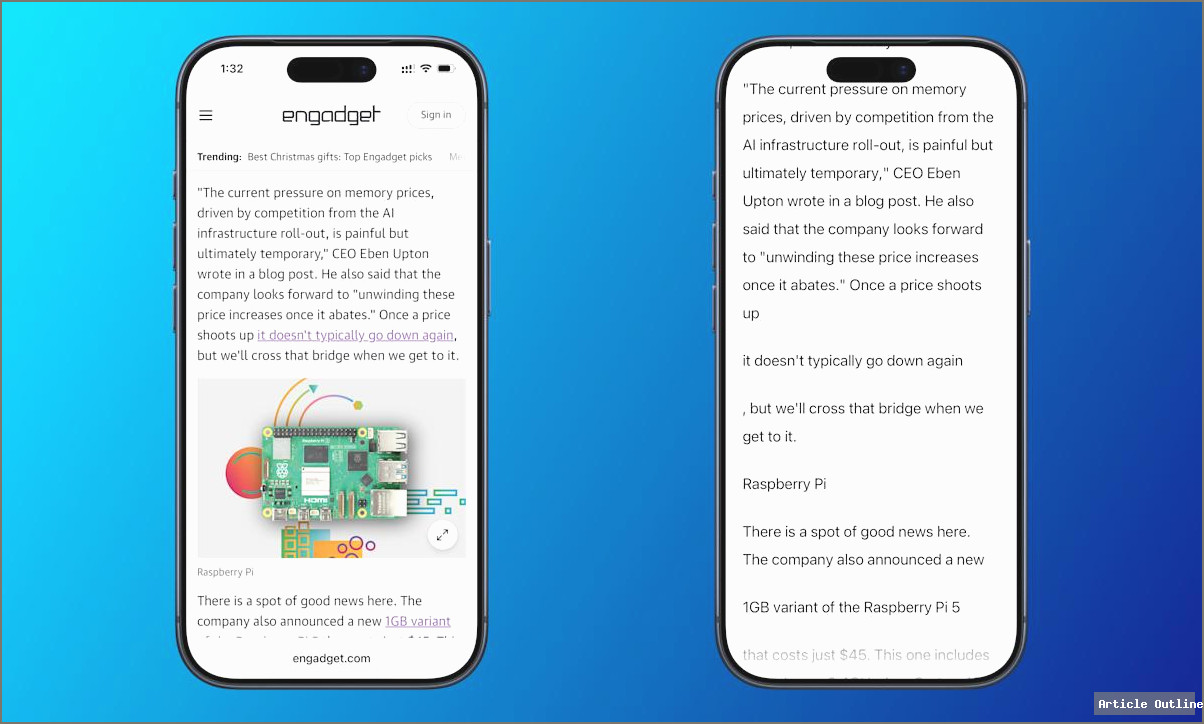
Apple’s new Accessibility Reader is making waves for its obvious benefits to users with visual disabilities—but its impact goes far beyond that. Let’s dig into why this feature is actually a game-changer for everyone, how it quietly shifts the way we use our devices, and what most people are overlooking in the buzz.
Why This Matters
- Universal accessibility is now the default—not a special setting. Apple’s Accessibility Reader can turn any on-screen text (not just web pages) into an easy-to-read, customizable, and audible format. That’s a huge leap from Safari’s limited Reader Mode.
- It’s not just for the visually impaired. Think students skimming dense PDFs, professionals speed-reading contracts, or anyone who prefers listening over reading during a commute. This is productivity, comfort, and inclusion rolled into one.
- Apple is setting a new industry bar. With iOS 26, macOS 26 Tahoe, and beyond, accessibility isn’t a feature—it’s a core expectation. Competitors, your move.
What Most People Miss
- Deep Customization: The Accessibility Reader isn’t just “on or off.” You can adjust font, theme, color, line spacing, and more—tailoring the reading experience for comfort or specific learning needs.
- Multiple Launch Methods: You can access it via triple-click shortcuts, Control Center, or keyboard commands—so it’s always at your fingertips, whether you’re on iPhone, iPad, Mac, or even Vision Pro.
- Text-to-Speech Speed Control: Not only can you listen to content, but you can also adjust playback speed—great for power users or those with auditory processing needs.
- Automatic Reading: Set it up to start reading aloud instantly when you open it. This is a big win for users who rely on auditory information.
Key Takeaways & Expert Analysis
- Accessibility Reader is a mainstream productivity tool, not just an assistive add-on. It can help anyone manage screen fatigue, multitask, or digest information in new environments.
- Apple’s approach is frictionless. Unlike many accessibility tools that require lengthy setup, this integrates seamlessly with the OS, making it as easy as toggling Night Shift or Do Not Disturb.
- It’s a hint at where tech is heading: Features designed for accessibility often become essential for the masses (think: closed captions, dark mode). Expect rivals to follow suit.
Quick Start: How to Use Accessibility Reader
- Turn On: Go to Settings > Accessibility > Read & Speak and enable Accessibility Reader.
- Launch:
- Triple-click the side/top button (iPhone/iPad/Vision Pro), or the Home button (older iPads).
- Add it to Control Center for one-tap access.
- On Mac: use Cmd-Esc (customizable), or Opt-Cmd-F5 for the Accessibility Shortcut menu.
- Listen: Hit the play button in Accessibility Reader. Adjust speed or skip forward/back as needed. You can set it to auto-speak on open in Settings.
- Customize: Tap the “AA” button to tweak font, colors, and spacing for optimal reading.
Pros and Cons
- Pros: Seamless integration, deep customization, multiplatform support, productivity boost for all users.
- Cons: Requires latest OS versions, some learning curve for advanced features.
The Bottom Line
Don’t sleep on Accessibility Reader. Whether you have a disability or just want to supercharge your device, this is Apple quietly rewriting the rules of digital reading and productivity. Today’s “accessibility” feature is tomorrow’s must-have tool. Tech giants: the bar just got higher.
